
The FlexyB Gift Cards application enables merchants to conveniently redeem digital and physical gift cards directly through their Clover POS system.
These steps apply to merchants who use the following POS Systems:
- Clover Mini
- Clover Station Solo/Duo
If you are using any of the following payment terminals or tablets:
- Clover Flex / Pocket
- Moneris
- Ingenico
- Amazon Tablet
Please refer to the following article for instructions on how to proceed:
Process Gift Cards via the FlexyB Gift Cards Application
Place an order
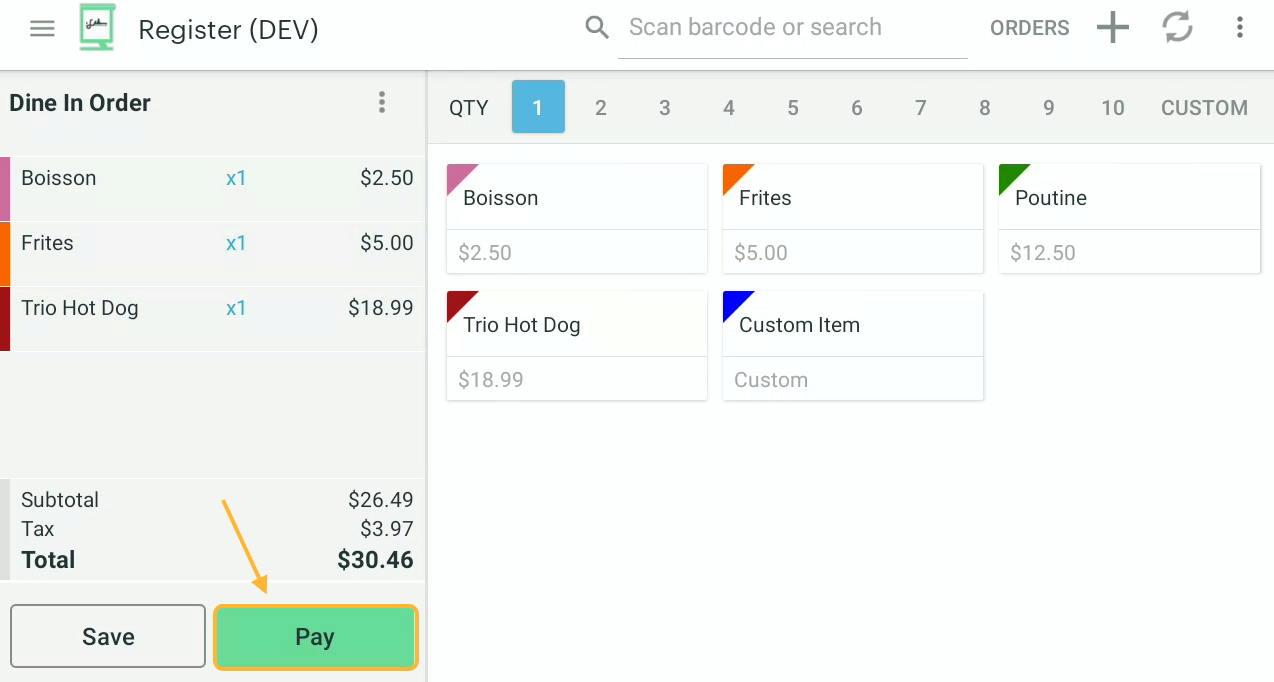
Open the Clover Register app and place an order as you normally would. Once you have added the items to the order, proceed to checkout.
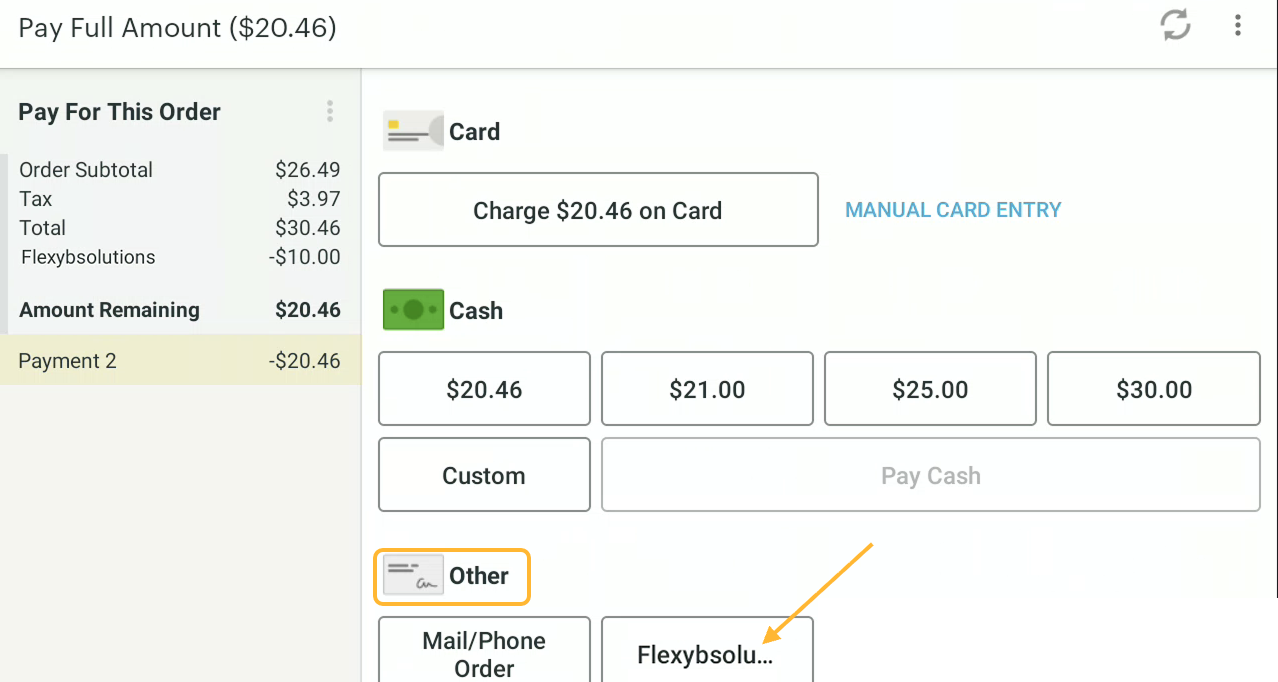
To process the payment using a gift card, go to the "Other" section then select "Flexybsolutions"
Authentification
These authentication steps only need to be completed once by an administrator.
Make sure you have activated your account using the Welcome email. If you can no longer find this email, feel free to contact us at support@flexybsolutions.com, and we will be happy to resend it to you promptly.
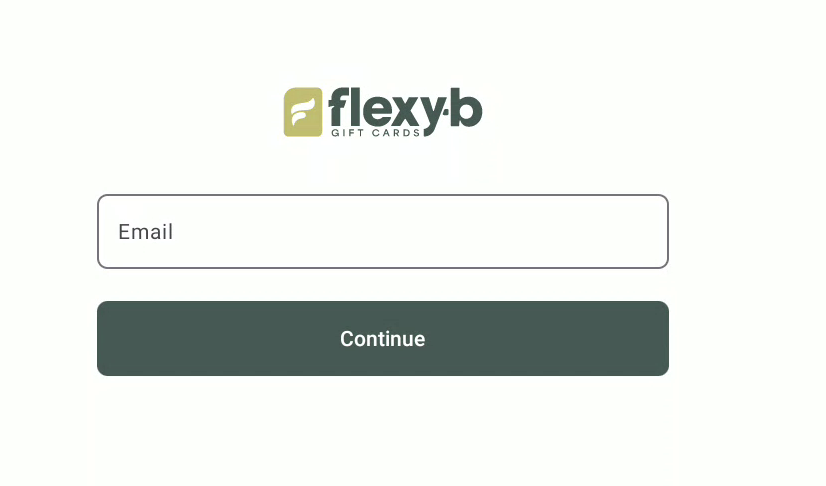
Enter your administrative account email
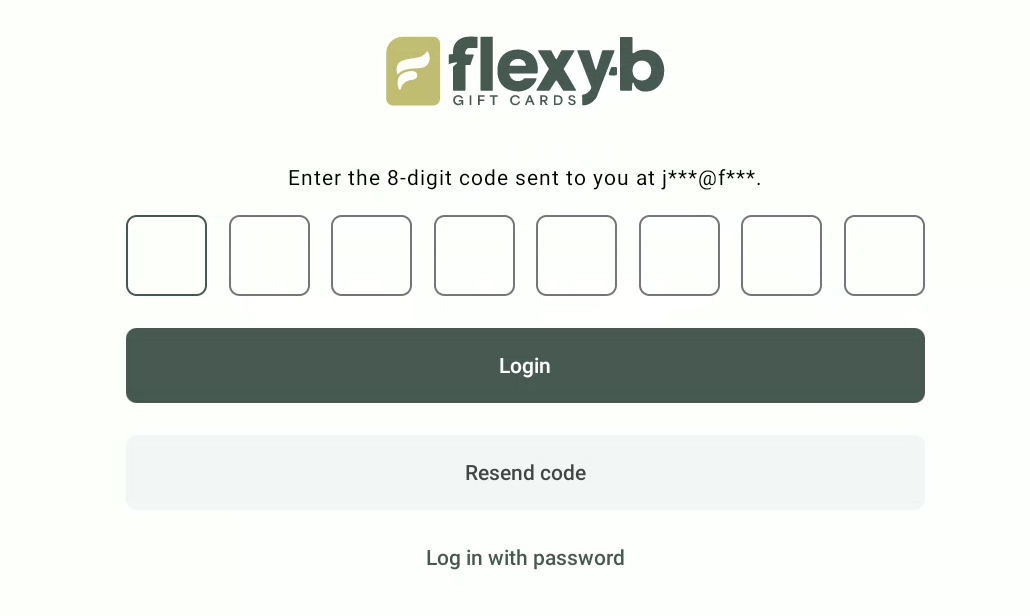
To log in without a password, enter the 8 digit code sent to your email.
To log in with your password click on "Log in with password" and enter your password.
Choose your location
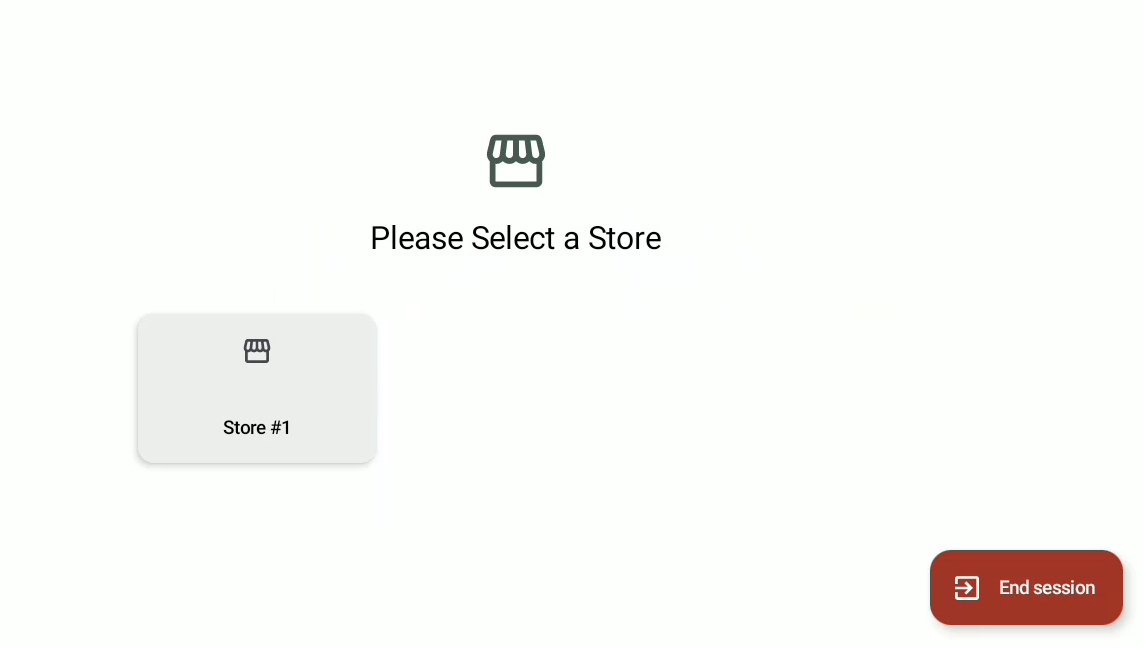
Once these steps have been completed, employees won’t need to repeat them when opening the app and can simply follow the steps below.
Identification
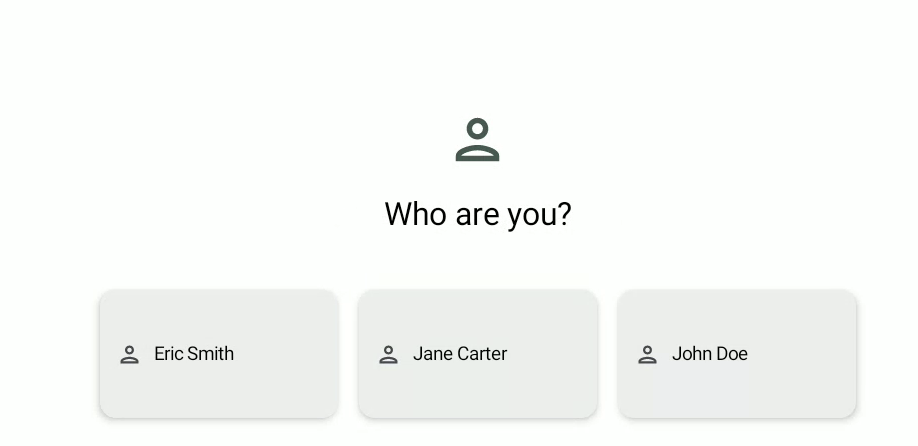
Select your employee profil
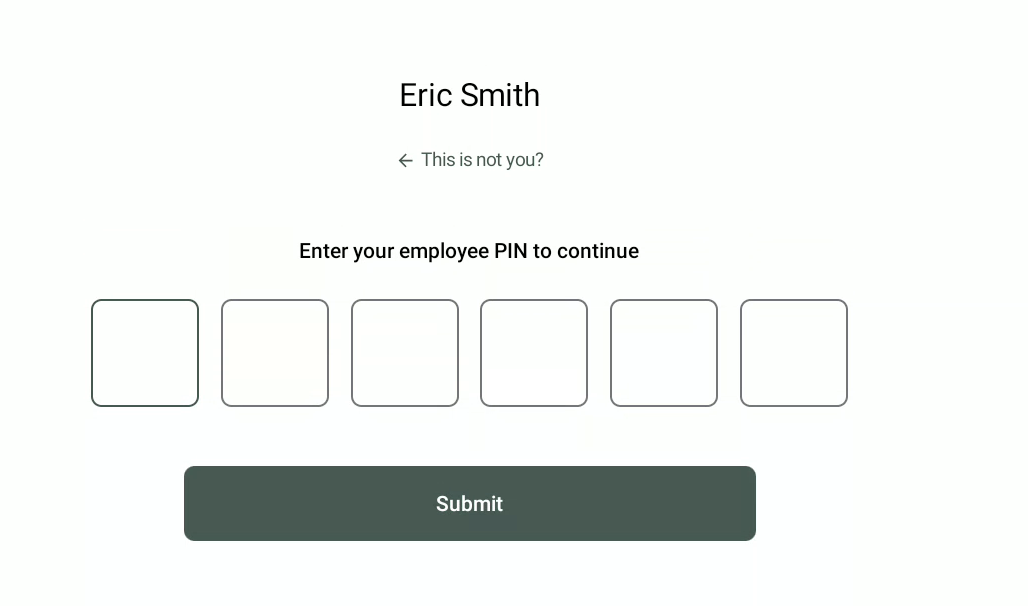
Enter your employee PIN to access the application
Note: The PIN can be reset through the gift card program administration portal, on the employee detail page.
Processing Gift Cards
Once authenticated, you will be able to process gift card transactions by scanning them with the camera or manually entering its code
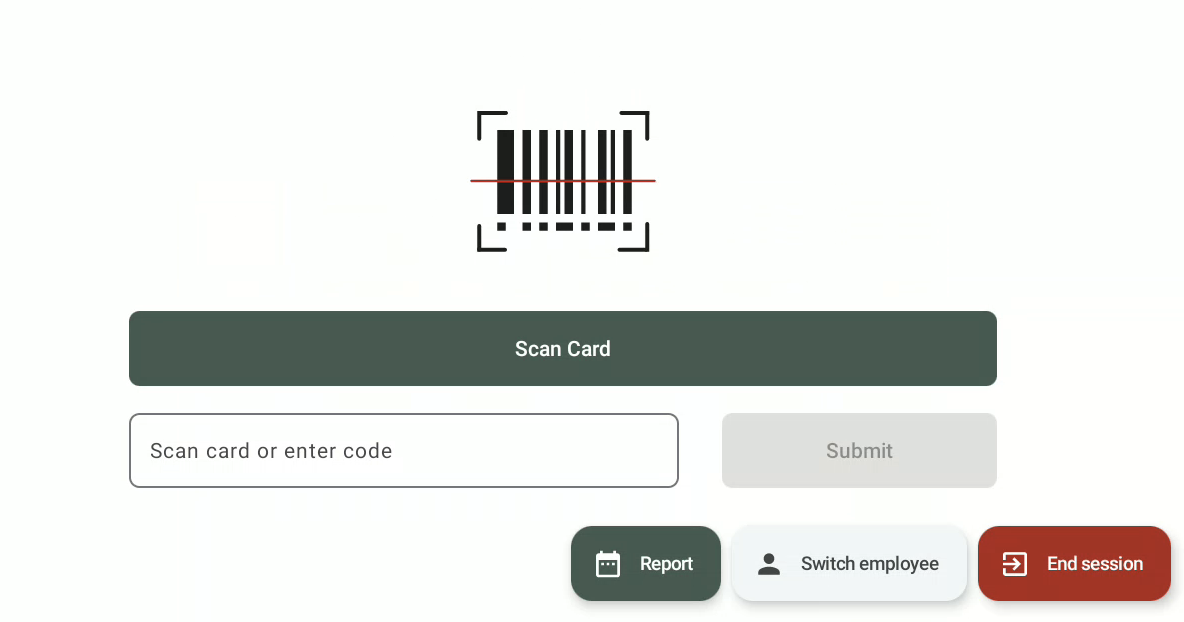
To deduct funds from a gift card, tap "Use". The amount will be automatically deducted from the card's balance.
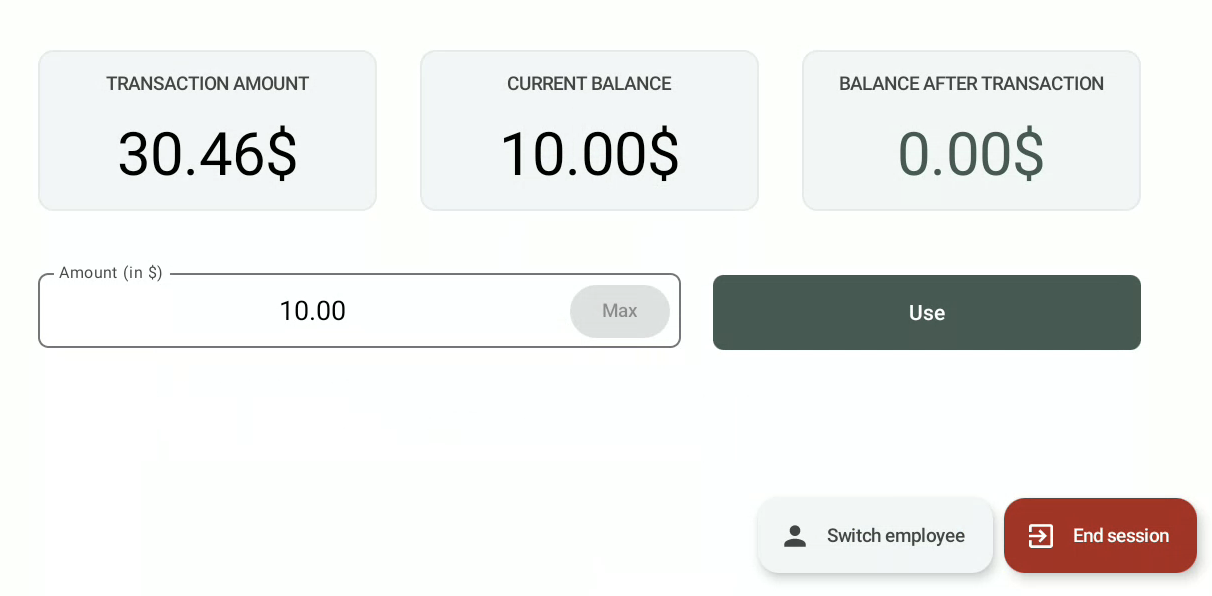
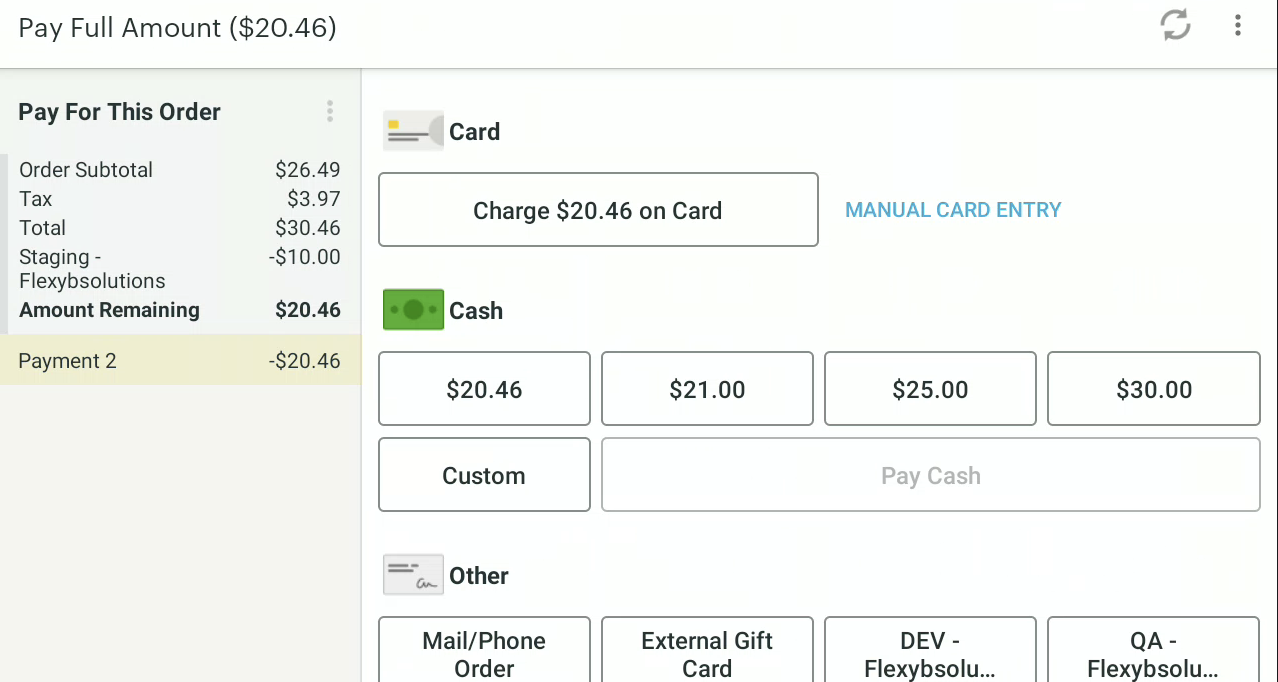
To complete the order payment, tap "Take Next Payment" and select the preferred payment method.
Comments (0 comments)